

Learn how to request a Sunshine Line HC App account and step-by-step instructions for using the app
Sunshine Line’s mobile app, provided through Ecolane, allows clients to view and manage their door-to-door trips provided by Sunshine Line. Users can view scheduled trips, see estimated arrival times, cancel trips, and request trips (depending on eligibility).
Step 1: Call (813) 272-7272 to Verify Your Eligibility and Request Access
A Sunshine Line staff member MUST set up your account in order to use the app.
The app is available for current registered Sunshine Line clients. Some clients will have limited app capabilities.
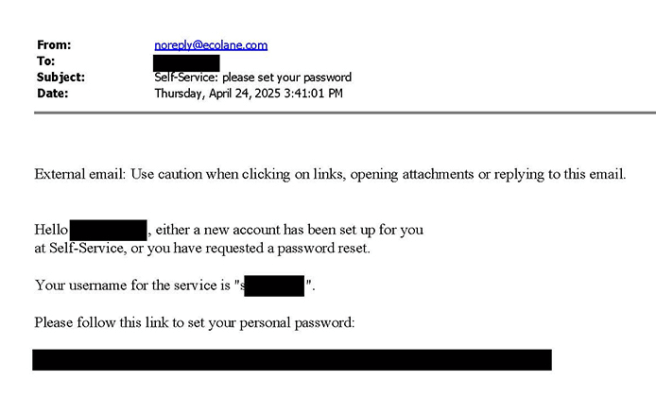
As soon as your account for the mobile app is created by Sunshine Line, you will receive an email from noreply@ecolane.com. Follow the link to set your password for the mobile app.
Step 2: Download the Sunshine Line HC App
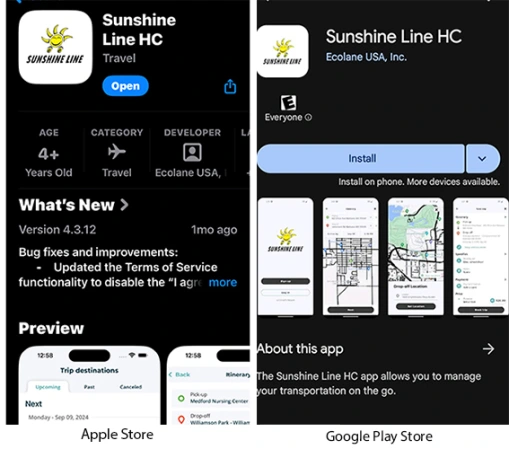
On the Apple App Store (iPhone users) or the Google Play Store (Android users) search for “Sunshine Line HC” or use the links below. Download and install the app.
Step 3: Log in to the App
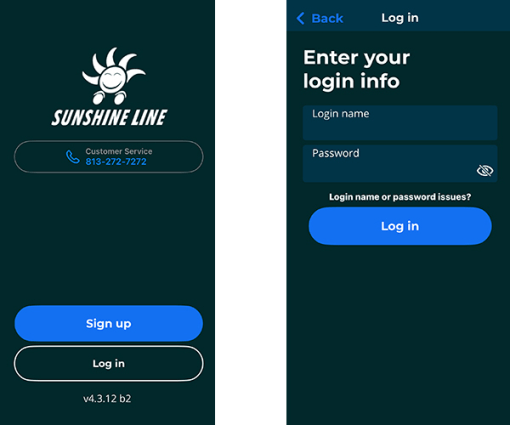
Open the Sunshine Line HC app and tap the Log in button. Enter the Login Name provided by Sunshine Line and the password you created and click Log in.
Step 4: Navigate the App
The bottom of the app home page provides three main pages: Trips, Booking, and Account.
On the Trips screen there are three tabs for Trip Destinations: Upcoming, Past and Canceled.
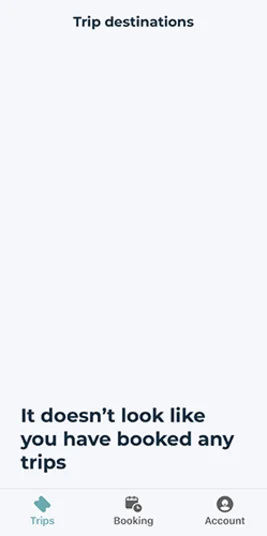
- To see your upcoming scheduled trips, tap Upcoming on the top left of the screen. You’ll see future scheduled trips displayed in your upcoming trip list including the Trip Date, Pick-up and Drop-off Locations. Additional information about upcoming trips is made available on the day of the pickup.
- Select a scheduled trip to view more details, cancel the trip, or book again (if this is enabled)
- The Map view allows you to see the location of your vehicle in real-time on the day of the trip. This will only show when you are the next pickup, and the vehicle is on the way to you.
- To see your past completed trips, tap Past in the top center of the screen
- To see your canceled trips, tap Canceled in the top right of the screen. You can select a canceled trip to view more details or rebook, if enabled.
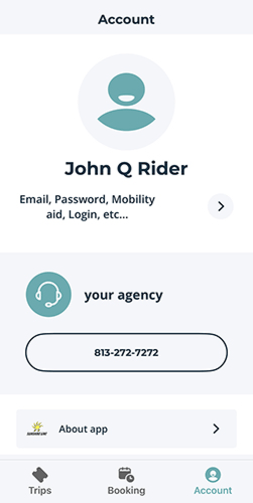
- View your user account by tapping on the Account button at the bottom of the page. Here, you can:
- View your profile information
- Change your password
- View stored locations for your account
- Log out
- Remove your account
Step 5: Book a Trip with the App (if this is enabled)
In the Booking tab, start by selecting your trip purpose using the dropdown menu. Select the trip purpose that best matches the purpose of your trip.
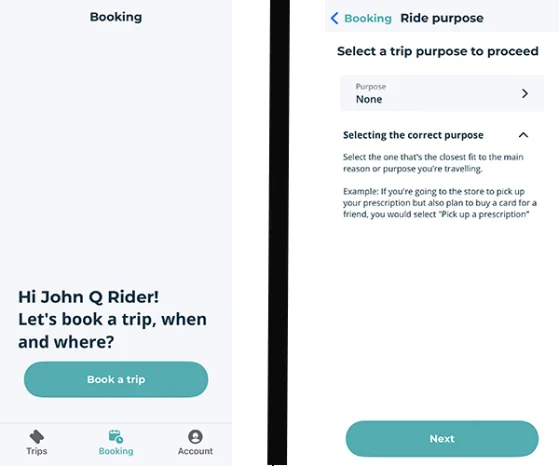
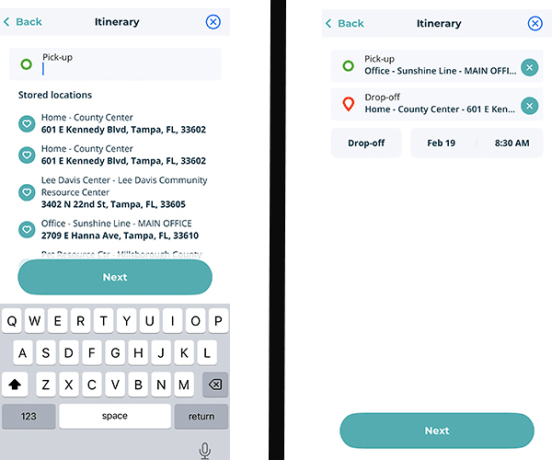
- Tap Next, then select your pick-up address from the drop-down list
- From the app you will be able to book to pre-approved locations only. If you need to book a trip to another location, please call Customer Service.
- Select your Drop-off address by selecting the location in the drop-down list
- Choose whether you’d like to schedule by Pick Up or Drop Off time:
- Drop off: You will get dropped off at the time you request or earlier. Your pickup time will vary.
- Pick up: You will get picked up between the time you request and 35 minutes later. Your drop-off time will vary.
- Review your trip details, then tap Book Trip
Success! Your trip is booked. You will be shown your arrival time and pick up time.
Please note, if you try to book a trip and receive a message that “this trip cannot be scheduled due to run availability,” it means that Sunshine Line cannot accommodate your trip. Please try scheduling your trip for another date or time or contact Customer Service by phone for assistance.
Step 6: Book a Return Trip (if needed)
- After scheduling a trip, you will be given the option to book a return trip.
- Tap YES to book a return trip or NO to decline
- The Drop-off address you chose for your previous trip will automatically populate as the pick-up location, dropping you off at your original Pick-up address
- To change the Pick-up or Drop-off address, select the item you wish to change and choose a different location from the drop-down list
- Verify the proposed Pick-up or Drop-off time. Tap any item you wish to change.
- Review your trip details
- If your trip looks right, tap Book trip
- If you need to make changes, tap the item you want to fix
- Success! Your trip is booked. You will be shown your Arrival time and pick-up time
- Tap ok
After you’re done booking your trip, you’ll see it displayed in your upcoming trip list.
Frequently Asked Questions
- What does it mean if I see an icon of a phone next to my trip?
- If you see an icon of a phone next to the trip, you must call Sunshine Line at (813) 272-7272 to confirm pick-up before making an appointment.
- What if I forget my password?
- If you have forgotten your login information, tap the blue text that says “Login name or password issues?” and you’ll be prompted to reset your password.